
01
Pick a tool
Open the Studio and choose a tool from the tabs. The workspace adapts its inputs to the tool you pick.
A full AI toolkit, one creative workflow.
SecretFlame Studio brings image, face, and video AI tools into one workspace for responsible adult fictional creation.
Start with a prompt, a face, an image, or a video idea. Shape your input, generate a result, continue into the next tool, and keep every image and clip saved in your personal library.
Describe the face
Original adult fictional face, warm editorial light, natural skin detail…
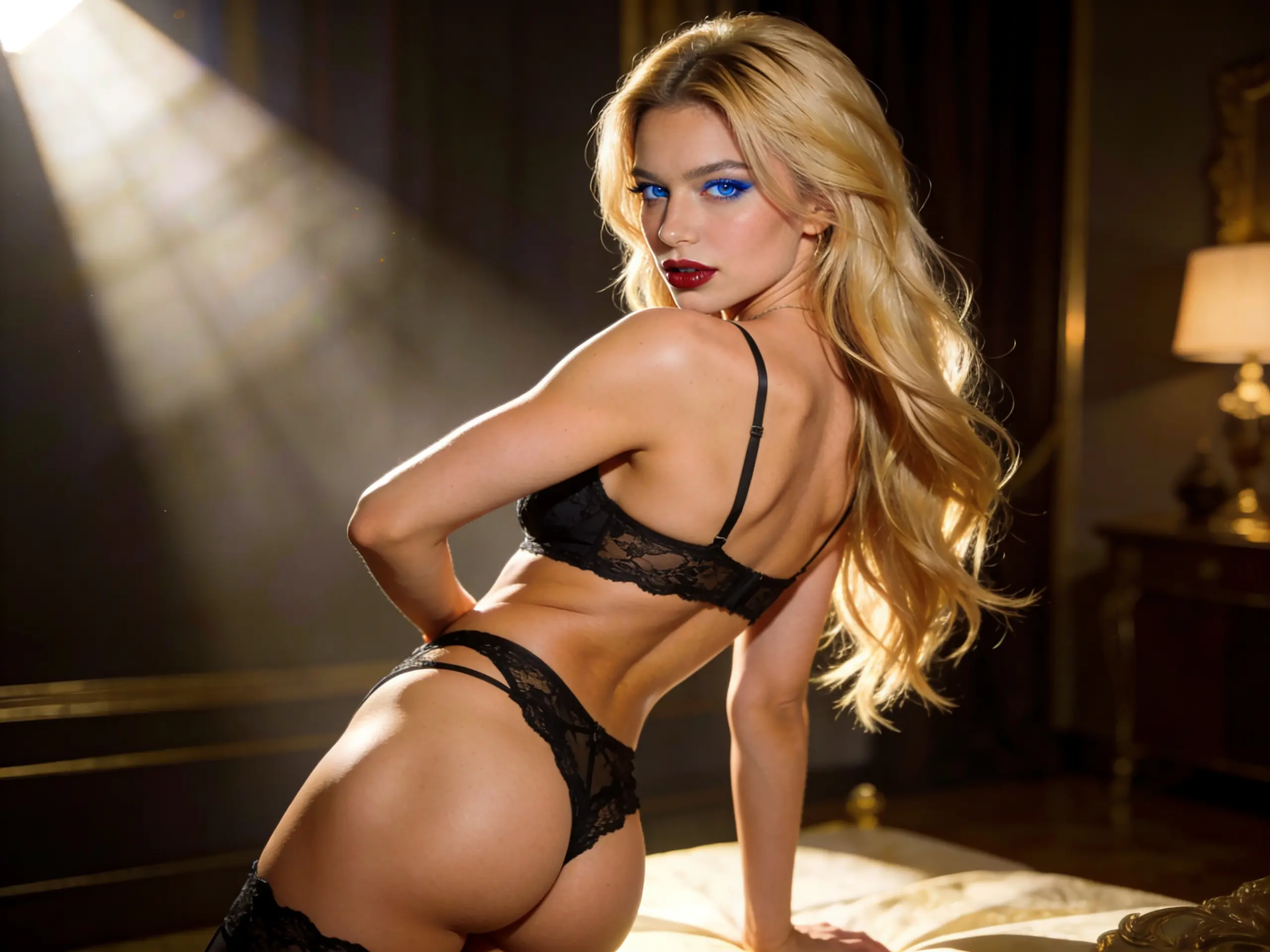
SecretFlame Studio is designed so you do not have to jump between disconnected pages or start over every time an idea changes.
Every tool lives in the same workspace. You can generate a face, turn an image into video, or create motion from a text prompt, then keep moving without breaking your creative flow.
The best SecretFlame workflow is simple: choose the right starting point, shape your input, generate, refine, and continue into the next tool when the result is strong enough.
Everything you create is saved in My Generations, so your still images and clips stay easy to search, preview, reuse, and download.
You do not need to begin the same way every time. Choose the starting point that matches your idea, your assets, and the result you want.
Start with Text to Video.
Describe the scene, mood, subject, motion, and style in plain language. This is the fastest path when you already know the kind of short cinematic clip you want to create.
Open Text to VideoStart with Face Generator.
Create an original adult fictional face from a prompt, then send the result into Image to Video when you want to continue the workflow.
Open Face GeneratorStart with Image to Video.
Upload a source image or choose an example image, add optional motion direction, and turn the still into a short clip.
Open Image to VideoEvery tool shares the same Studio workspace and My Generations library. They differ in what they take in, what they produce, and where they fit in the creative process.
Best for: Turning a written concept into short cinematic motion.
Use it when
What you can control
Best for: Creating an original adult fictional face from a prompt.
Use it when
What you can control
Best for: Animating a still image into a short clip.
Use it when
What you can control
If you are not sure where to start, use the goal to choose the tool.
I want to create a video from an idea
Use Text to Video.
Write the concept, choose the style, set the duration, and generate a short cinematic clip.
I want to create a fictional face first
Use Face Generator.
Create the identity first, then continue into Image to Video when you want to build on the result.
I want to animate an image
Use Image to Video.
Upload the image, add optional motion direction, and generate a clip from the source visual.
Open the Studio and choose a tool from the tabs. The workspace adapts its inputs to the tool you pick.
Write a prompt for prompt-based tools, use preset chips, or tap Surprise me for a quick starting point. For Image to Video, upload an image or use built-in examples if you do not have assets ready.
Adjust the available settings for the tool. Depending on the tool, you may be able to set aspect ratio, quality, or video duration. The estimated credit cost updates before you press Generate.
Press Generate. Your latest result appears in the preview area and is saved automatically to My Generations.
When a result can be used in another tool, choose Continue with to send it directly into the next workflow. You can also open My Generations to search, preview, download, or reuse anything you have created.
When a tool produces an image, a Continue with action can send it straight into the next tool’s upload slot. That means you do not have to download, re-upload, or rebuild the same idea from scratch.
Create an original adult fictional face, then send it into Image to Video as the source image so you can generate a clip from it.
Every image and video you create is saved in My Generations, your personal library inside the Studio. It is built so a large history stays easy to navigate.
Find work faster by tool name, or filter your history to show only images or only videos.
Results are grouped into time buckets and paged with Load more, so large libraries stay fast and manageable.
Open any result in a centered preview with previous and next navigation before you download.
Every image and video is one click away from a full-resolution download.
Yesterday
image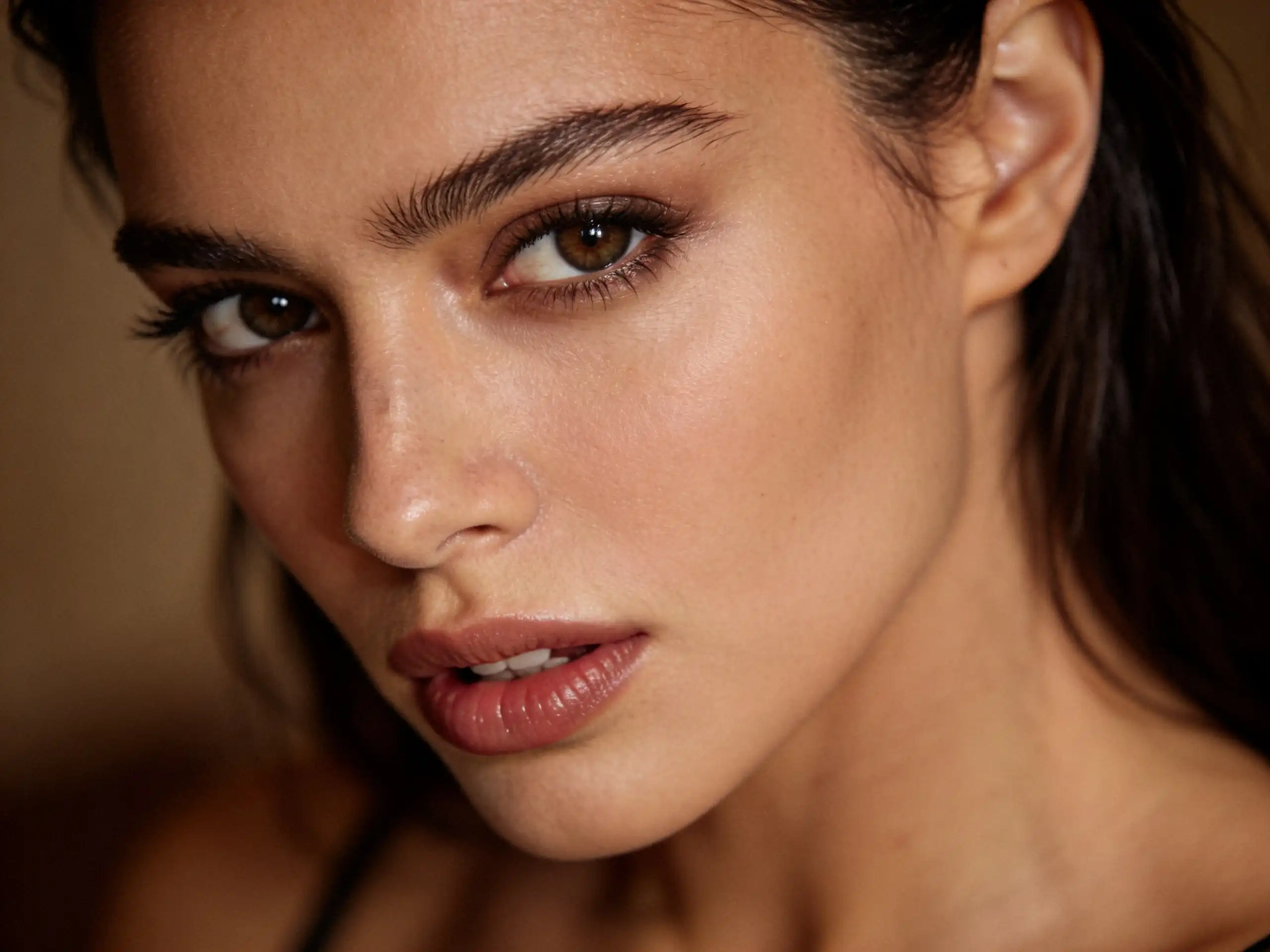 image
image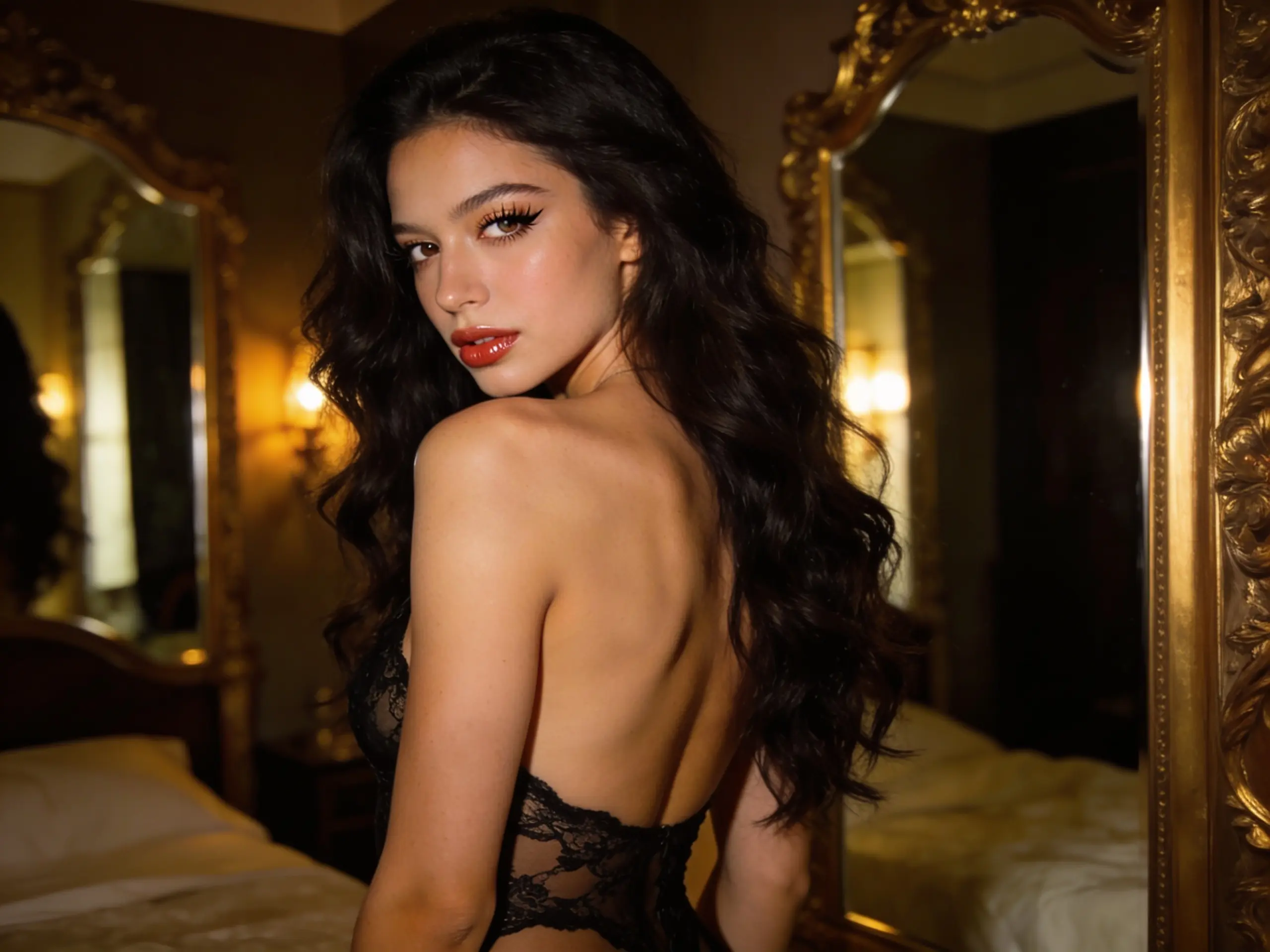 video
video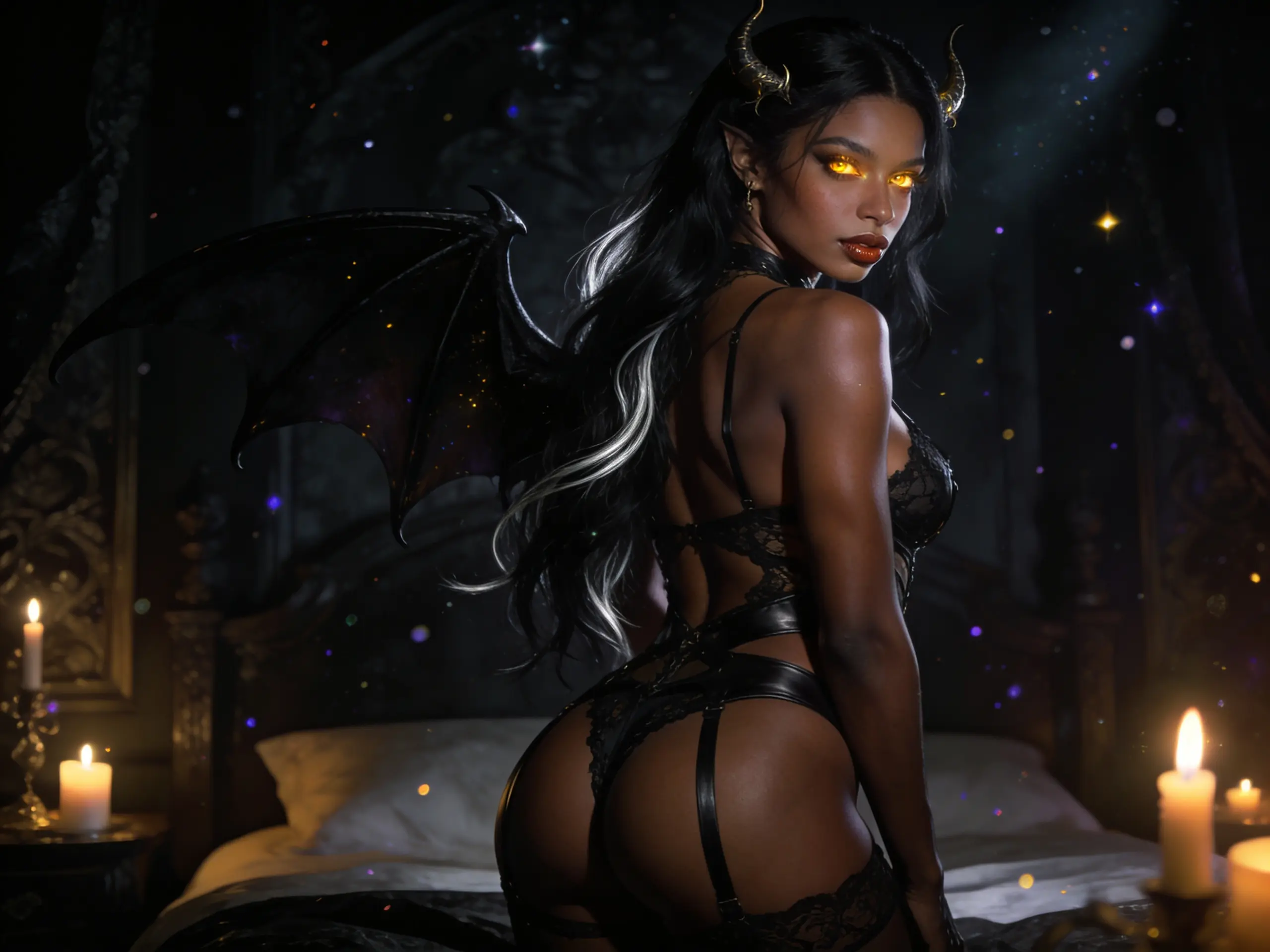 image
image image
image video
videoEach generation costs credits based on the tool. The estimated cost is shown before you press Generate.
Text to Video
6
credits
Face Generator
2
credits
Image to Video
7
credits
You can test ideas quickly, check the estimated cost before committing, and choose the workflow that fits the result you want. For video tools, shorter clips are usually better for early iteration. Once the look is right, increase duration when needed.
Better results usually come from better starting points. Use prompts, examples, presets, and tool hand-off to reduce friction.
Each prompt-based tool includes quick-start chips and a Surprise me button. Use them as a starting point, then edit the prompt to match your exact idea.
Specific prompts beat generic ones. Name the subject, mood, lighting, styling, framing, and output you want.
No image ready? Image to Video includes example inputs so you can try the workflow without uploading anything first.
Use Continue with to carry a strong result into the next tool instead of generating from scratch. A good face can become an image-to-video source.
For video tools, shorter clips make it easier to test style, movement, and direction. Increase duration once the concept is working.
Open My Generations to reuse a previous result as the seed for your next idea. Your best outputs can become starting points for new workflows.
Weak prompt
“Make a character”
Better prompt
“Original adult woman, warm editorial lighting, natural skin detail, confident expression, luxury portrait style.”
The Studio is one workspace for SecretFlame's AI tools — image, face, and video creation, restyling, and more. You switch tools with tabs, shape your input, generate a result, and everything you make is saved to your My Generations library.
Start with Text to Video if you want motion from a written idea. Start with Face Generator if the character identity matters first. Start with Image to Video if you already have a still image you want to animate.
Each generation costs credits based on the tool. Face Generator costs 2 credits, Text to Video costs 6 credits, and Image to Video costs 7 credits. The estimated cost is shown before you press Generate.
Yes. After a Face Generator result, use Continue with to send the image straight into another tool. Supported hand-offs include Face Generator to Image to Video. The image lands in the right upload slot automatically.
Every generation is saved to My Generations. You can search by tool, filter by images or videos, browse by date, open a larger preview, and download your results.
No. Prompt-based tools include quick-start preset chips and a Surprise me button. Upload-based tools also offer example images so you can test the workflow without uploading your own assets.
Image to Video inherits the aspect ratio from your source image. That means there is no separate aspect-ratio control for that tool.
Yes. SecretFlame is built for responsible adult fictional creation. Use original or authorized adult characters only. Do not create minors, anyone who appears under 18, or real-person likenesses without consent.
Create original adult fictional characters, use assets you have the right to edit, keep private material private, and never use AI tools to harm, impersonate, expose, or exploit someone.
A full toolkit, tool hand-off, credit estimates, and a saved library, all in one workspace.